Redo one shot. Leave the other forty alone.
01Why one shot
Editors have been doing this for a hundred years
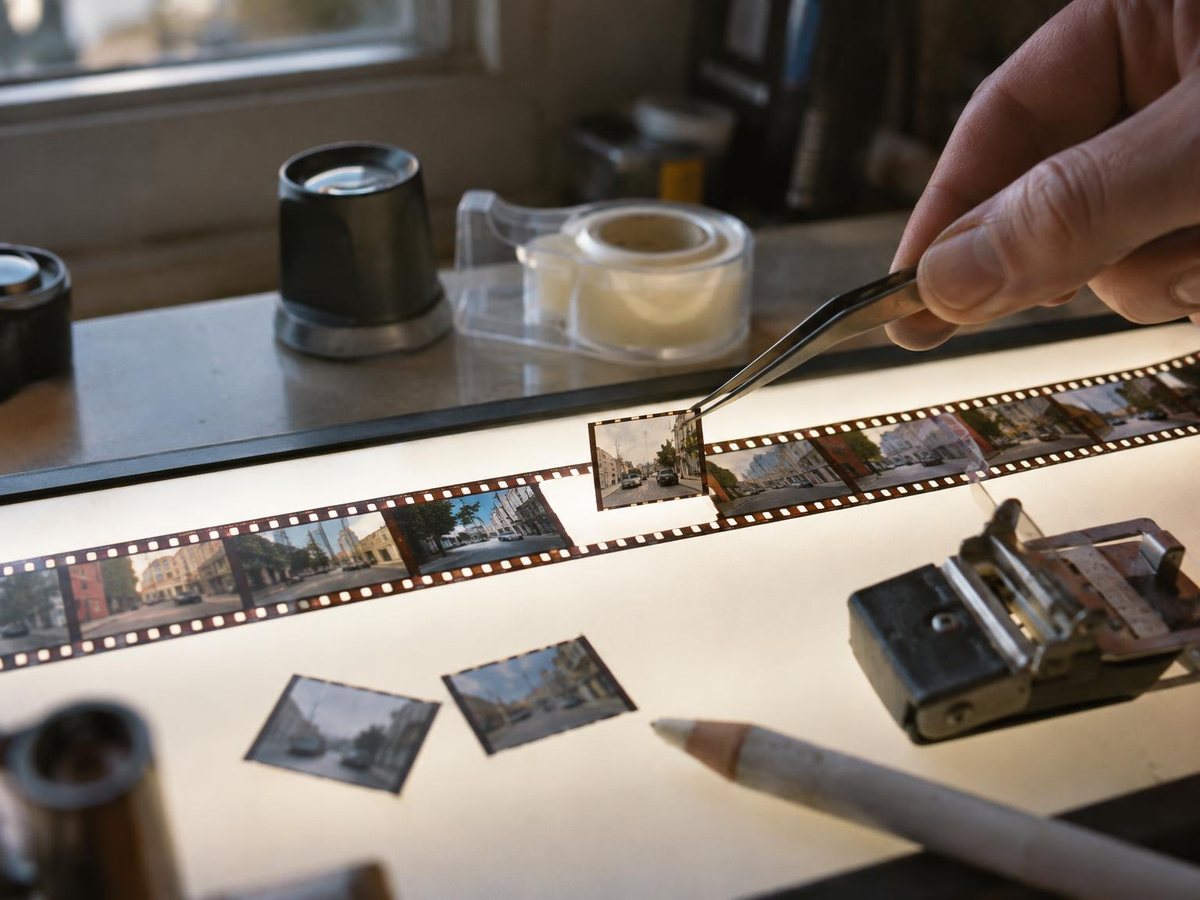
When one frame of film was scratched, nobody reshot the film. They cut out the bad bit and spliced in a good one. Generated video works the same way, if you let it.
The temptation is to tweak the prompt and run the whole thing again. That rolls the dice on every shot in the video. The shot you fixed comes back right, and shot 23, which was fine, now has a different sofa.
Redoing one shot is also cheaper. You pay for the four seconds that broke, and the other four minutes stay exactly as they are.
02The workflow
Seven steps to replace a shot
- 01
Find the shot and its exact times
Where it starts and where it ends, to the frame. If only part of a long shot is wrong, mark the stretch around the problem.
- 02
Cut it out with a little extra
Take a few frames either side as handles. If the shot is very short, borrow a bit more from its neighbours so the model has enough to work with. You trim it off later.
- 03
Pick the reference frame
The first clear look at whatever broke. A frame from the video itself, so it carries the same light, lens and grade.
- 04
Write one instruction
The shot and the time, what is wrong, what it should be, which frame to match, and that everything else stays as it is.
- 05
Redo the shot against the reference
Edit or regenerate only this clip with the reference attached. Keep the length, the frame rate, the framing and the camera move.
- 06
Check it twice
Once against the reference: is the problem gone for the whole shot? Once against the original: did anything else change, like a face, a hand or the light?
- 07
Trim the handles and drop it back in
Cut the borrowed frames off, put the new shot exactly where the old one was, and play across both cut points.
03Small things that give it away
Make the new shot disappear into the cut
- 01Match the length exactly
- A new shot that is a few frames longer pushes every cut after it. Trim to the original in and out points.
- 02Keep the frame rate
- Conform the new shot to the video's frame rate before you drop it in, or the motion stutters at the cut.
- 03Lay the original sound back
- If the shot has dialogue or sync sound, keep the original audio under the new picture.
- 04Watch the grade
- A redone shot can come back a touch brighter or warmer. Match it to the shots either side.
04Or press the button
All seven steps, one button
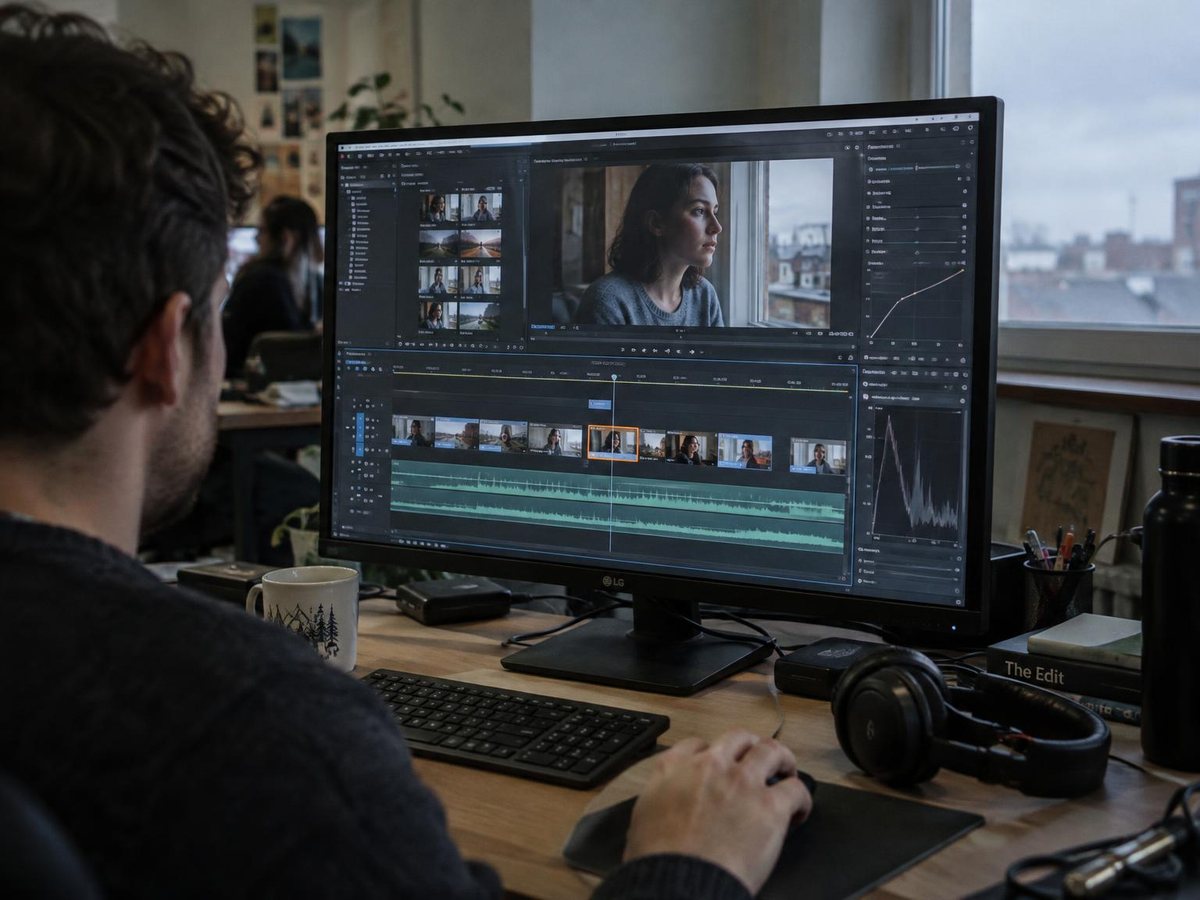
VideoConsistency finds the shot, its exact times and the reference frame for you, and writes the instruction. Press Fix this shot and the shot is cut out with its handles, redrawn by one of the best frontier video editing models, and checked against both the reference and your original.
You see a low-res draft first. Review it, then choose 720p or 1080p and download the shot, or the whole video with the new shot already trimmed and dropped back in.
05Questions
Common questions
Can you edit just one part of an AI video?
Yes. Cut out the shot that is wrong, redo it against a reference frame, and put it back. The rest of the video stays the video you already approved.
How do I replace a shot in an AI-generated video?
Find its exact start and end, cut it out with a few frames of handle, redo it with the reference frame and one instruction, trim the handles and drop it back on the same in and out points. Then watch across both cuts.
Why not just regenerate the whole video?
Because every other shot gets regenerated too. You fix one mistake and buy a fresh set of new ones, and you have to check everything again.
Will the new shot match the ones around it?
It should, if it was redone against a frame from the same scene and checked against the original. The things to watch are faces, light and the grade. Play the shot before and after it to be sure.
How long can the shot be?
In VideoConsistency, Fix this shot works on the shot itself, or a 30-second window around the problem when the shot is longer. Very short shots borrow a few frames from their neighbours. The rebuilt full video can be downloaded for videos up to 15 minutes.
Keep reading
Find and fix
How a broken shot gets redrawn, with a real before and after.
AI video editing
The check the editing tools skip, and how a fix should be written.
Fixing characters
A face, a sweater or a pair of glasses that changed between shots.
Continuity guide
A working order for keeping a long generated cut consistent.
Find the shot worth redoing
Upload the cut and every break comes back with its shot, its exact times and the frame to match. The report comes back in a few minutes for most clips.